FACEIT Anti-Cheat checks that the PC runs with Secure Boot, TPM 2.0, IOMMU and HVCI (memory integrity). Many diskless setups fail these checks: they boot without Secure Boot, or through a path that turns them off. Broom clients pass them:
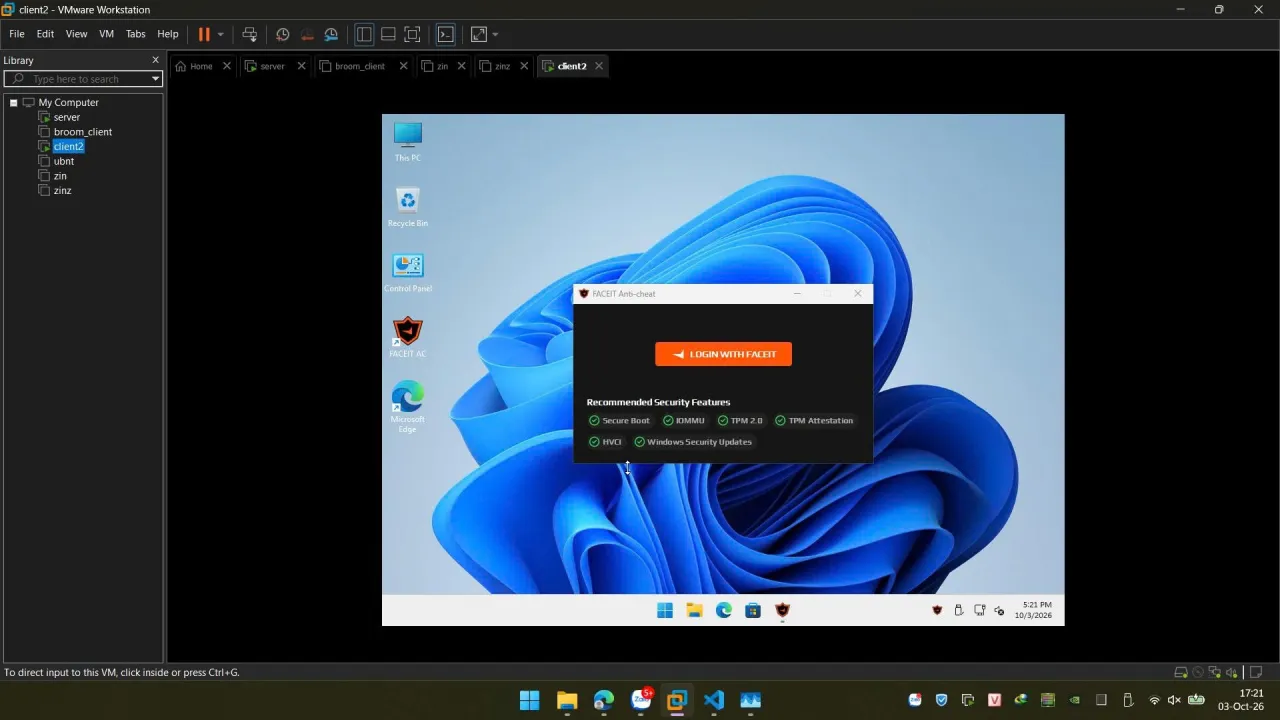
How Broom keeps them on
- Secure Boot — with Secure Boot clients ticked on the Network page, the PCs boot the official iPXE signed by the iPXE project through its Microsoft-signed shim, and the Windows stage runs Ubuntu’s signed kernel through Ubuntu’s Microsoft-signed shim. Every step of the network boot is signed, so Secure Boot stays on.
- TPM 2.0 — Windows runs natively on the PC (from a VHDX on its SSD), so it uses the PC’s own TPM.
- VBS / HVCI —
broom-prep-winturns on Virtualization-Based Security and memory integrity in the golden. - IOMMU — on where the PC’s firmware enables it.
Setup
- Server: Network page → tick Secure Boot clients → Apply.
- Clients (firmware setup):
- enable Secure Boot, and allow the Microsoft 3rd-party UEFI CA (often off on Secured-core PCs);
- enable TPM 2.0 (fTPM / PTT), virtualization (VT-x / AMD-V) and VT-d / IOMMU;
- keep network boot (PXE) first.
- Golden: use drivers that are HVCI-compatible — an incompatible driver is blocked and memory integrity can’t
stay on. In a VMware VM, use the
e1000enetwork adapter, note1000. - Anti-cheat first run: if the anti-cheat needs to be set up on each PC once, tick Base mode on the image: the first logon on each PC waits for a technician, and their restart saves that state as the PC’s base.
Untick Secure Boot clients to go back to Broom’s own iPXE build on PCs that boot without Secure Boot — both modes are supported.